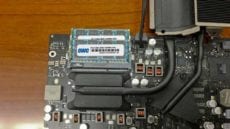
We know you’ve all been on the edge of your seats, waiting to see what it takes to get inside those new 21.5” iMacs, so we did a fast “just to show you” video, where we install 16GB of OWC memory in the new iMac. Article Continues…
Tag-Archive for » inside «
What Does It Take To Upgrade a 2012 iMac 21.5″?
A Peek inside the iMac 21”
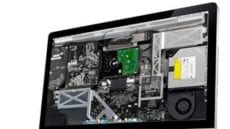
Well, that was an adventure! Turns out the screen to the new iMac wasn’t as easy to get into as we initially thought. But, our intrepid team, armed with suction cups, spudgers and a heat gun were eventually able to get the display removed to reveal the inside. Once inside, though, it was pretty straightforward. Article Continues…
2011 iMac Unboxing & Teardown
Today, Other World Computing received our first 2011 iMacs. For your viewing pleasure, here is a gallery including unboxing photos of two of the machines as well as some teardown photos of the 27″ iMac 3.4GHz model:
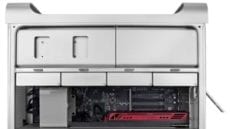
Taking a peek inside the 2010 Mac Pro.
While “unboxing” photos are fun for a brand new product line like the iPad or even the iPhone 4, showing the same for a model that doesn’t change a whole lot — like the Mac Pro — is a little like going to an ice cream shop and ordering vanilla. Really, how many times do you need to see the styrofoam corner protectors or the little sleeve with the owner’s manual and restore discs?
So what we thought you would find interesting is what’s inside this new computer; since as we learned with the 2010 iMacs sometimes, you find something unexpected.
This time around though, despite offering up to 12 cores of computing power and beefed up video capabilities, the internal layout looks to be pretty much the same as previous versions. But sometimes you can’t get enough of a good thing and in this case, we’ve verified there is still plenty of room for easy upgrading! But don’t take our word for it, here’s what it looks like inside: Article Continues…
Free iMac inner view desktop background from OWC
For those of you who want to let your inner geek show, have we got the desktop background for you!
While we’ve been exploring potential ways to upgrade the hard drive in the new iMacs, our own OWC Jamie took these photos of the new machines with their screens removed to expose the electronic goodness found inside. They make quite unique desktop pictures.
Or, you could use this as a static screensaver to discourage others from using your precious computer making them think your machine is down for maintenance.
The desktops are custom sized to the resolutions of the respective monitors:
21.5″ iMac : 1920 x 1080
27″ iMac : 2560 x 1440
To download, right-click on the links above and Choose “Save Linked File”
To install your desktop background, go to System Preferences (on the Apple menu) and choose Desktop & Screen Saver (in Personal): Desktop (control-clicking the desktop and choosing Change Desktop Background… from the pop-up menu will also get you there), then click Folder… (in the left panel) and select the folder in which you saved the picture. If the folder is not in the list, click the “+” in the lower left and navigate to the correct folder to add it. Click the picture in the right panel to display it as your desktop background.