


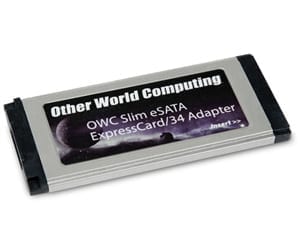
 For those of us fortunate enough to have a MacBook Pro with an ExpressCard/34 slot, there’s been one minor drawback – the cards almost always stuck out from the side of the MacBook Pro in an ugly protuberance, making it both odd-looking and difficult to fit in a bag without removing the card.
OWC’s Slim ExpressCard to eSATA Adapter changes things quite nicely. This card fits inside the ExpressCard/34 slot such that the eSATA port sits flush with the edge of the MacBook Pro, which means you can leave it installed, even when you’re not using it. It doesn’t require any special drivers, so you can just slide it in and go. It’s even bootable, so you can start your MacBook Pro up from an external drive, should you so desire.
Of course, we don’t need to go into the details of how much an advantage eSATA has in performance over FireWire 800 and USB 2.0. However, if you want some specifics, you may want to check out Lloyd Chambers’ latest review over at Mac Performance Guide.
If you want the short version, though, I think this quote from the article sums it up nicely.
The flush-fitting OWC Slim ExpressCard at about $28 is a total no-brainer buy to improve performance with any drive that supports eSATA. Driver-less and bootable too!
So if you have an external drive with an eSATA port, a MacBook Pro with an ExpressCard/34 slot, and a desire to increase your data throughput, then the OWC ExpressCard to eSATA Adapter is just what you’re looking for.




MacBookPro4,1, card icon appears in the menu bar, won’t recognize any of my eSata external drives (WD MyBooks). Tried all kinds of configurations and nothing works. Running OSX 10.6.8
The card itself is Plug and Play on a Mac – no drivers to install or configuring to do. For assistance in troubleshooting please contact our Technical Support department at 1(800)275-4576, email or via live chat.
Here’s an upgrade path that may help some of you folks.
I’ve got an older 2.4GHz “Santa Rosa” MacBook Pro that was showing its age, especially in Lion. I replaced its internal drive with a 120GB Crucial M4 SSD (to be my boot drive), and used the OWC eSATA card to connect to an external Seagate eSATA drive (for media, etc.)
The difference was night and day – I think I spent around $220 for these two parts and it’s like having a new Mac. In real world use, it runs faster than my 2.8GHz unibody as long as I’m not loading it down with many running apps at once, or virtual machines. In those cases the unibody with its 8GB RAM wins out.
I also bought the OWC card because of its SATA expander capability. I bought the Syba SY-PCI40037 card and it should be in this week. It supports either JBOD (5 independent disks) or RAID mode, which is independent of the OS. I’m going to try 5 drives with it and see if that helps performance vs. one spindle.
Perhaps a simple mistake on my part (hopefully).
I have an external enclosure (Acomdata Tango) with a USB2 and an eSata port with a Seagate 7200.4 drive inside. With this card and an eSata cable, my MBP3,1 will not recognize the drive. With the card inserted by itself, my machine recognizes a card, and gives me a status bar icon that says SATA Controller and the option to “Power Off Card.” If I plug in the USB2 cable along with the eSata cable, I get recognition and USB2 r/w speeds. Am I missing something? The drive is Mac OSX Journaled, Extended.
I’m going to take a guess here that you’re running 10.4 (Tiger) which originally came with the computer. Under 10.4.x, hot-plugging is not supported. Card and drives must be connected while the computer is turned off.
If you have updated to a later OS already (Leopard, Snow Leopard, or Lion) and are still having problems with hot-plugging and recognizing the drive, please contact our Technical Support Team for assistance in troubleshooting.
I have the same issue that Tammy has; when copying small files using this eSATA card I’m fine. However, when moving around large files (such as when copying lightroom folders), then I get error messages. I’m using the card with a RAID 5 Datatale drive. Up until Lion, I did not have any issues. Does anyone have any idea of an e-sata that will work with RAID drives? Thanks!
On OS X Lion, my OWC eSata expresscard keeps disconnecting my Time Machine Backup drive after a period of time when performing large backups. It is also disconnecting my other eSata drive I use for storage when I attempt to copy large amounts of data to the drive. Is this a known issue? Is it an OS X issue of an adapter issue? I am using the OS X Lion GM seed from my developer program.
We tested the card and it worked with no issues under Lion. But, we’ll run your same use scenario and see if that creates any disconnect.
Hello,
Just checking to see if you had any luck reproducing this issue. The problem seems to be with large files and large backup sets. An example would be an initial creation of a Time Machine Backup disk or copying a file that is several gigabytes in size. I had the problem attempting to copy off a backup of a virtual machine disk that was around 62 GB.
Thanks
Hi Tony…we’ve forwarded this to our CS/TS department and you should be hearing from them shortly.
To be explicit; this card will only support one external drive at a time on the Mac OS platform. So, for example if I were to purchase
http://eshop.macsales.com/item/SSI%20Corporation/SI7928SUSJD/
then I would not be able to take advantage of the dual drive capability.
If I am wrong someone please correct me!
Patrick,
You are correct, under OS X this card would support only one drive at a time. You would need to use a card that supports port multiplication (PM) in order to access both drives simultaneously.
I just got the card and have the 64-bit kernel enabled and the card is not being recognized. As the weather has closed OWC for today I can’t find out if they have/need drivers, or what else may be going on.
Anyone else used this card successfully on Mac OS X 10.6.6 in 64-bit mode?
Just wondering how would you remove this unit if it sits flush?
Is there a removal tool. Did a brief search and found nothing on it.
The expresscard slot itself is spring loaded, so just push in on the card and it will eject from the card slot enough to grab onto.
Yep, I lamented about the loss of the ExpressCard in the 15″ MacBook Pro in 2 places:
My blog entry here:
http://scottworldblog.wordpress.com/2009/06/09/apple-bring-the-expresscard-slot-back-to-the-15-macbook-pro/
And my article “MacBook Semi-Pro” here:
http://www.maclife.com/article/reviews/apple_macbook_pros
Hi There, this is a great idea!
Two things;
Will this work with the 64bit Kernel?
I wont be upgrading my 15.4″ any time soon as the 17″ is too big and i use the E34 slot too often! One of my biggest problems with the new line up of MBP’s!